
The spreadsheet problem importers know too well
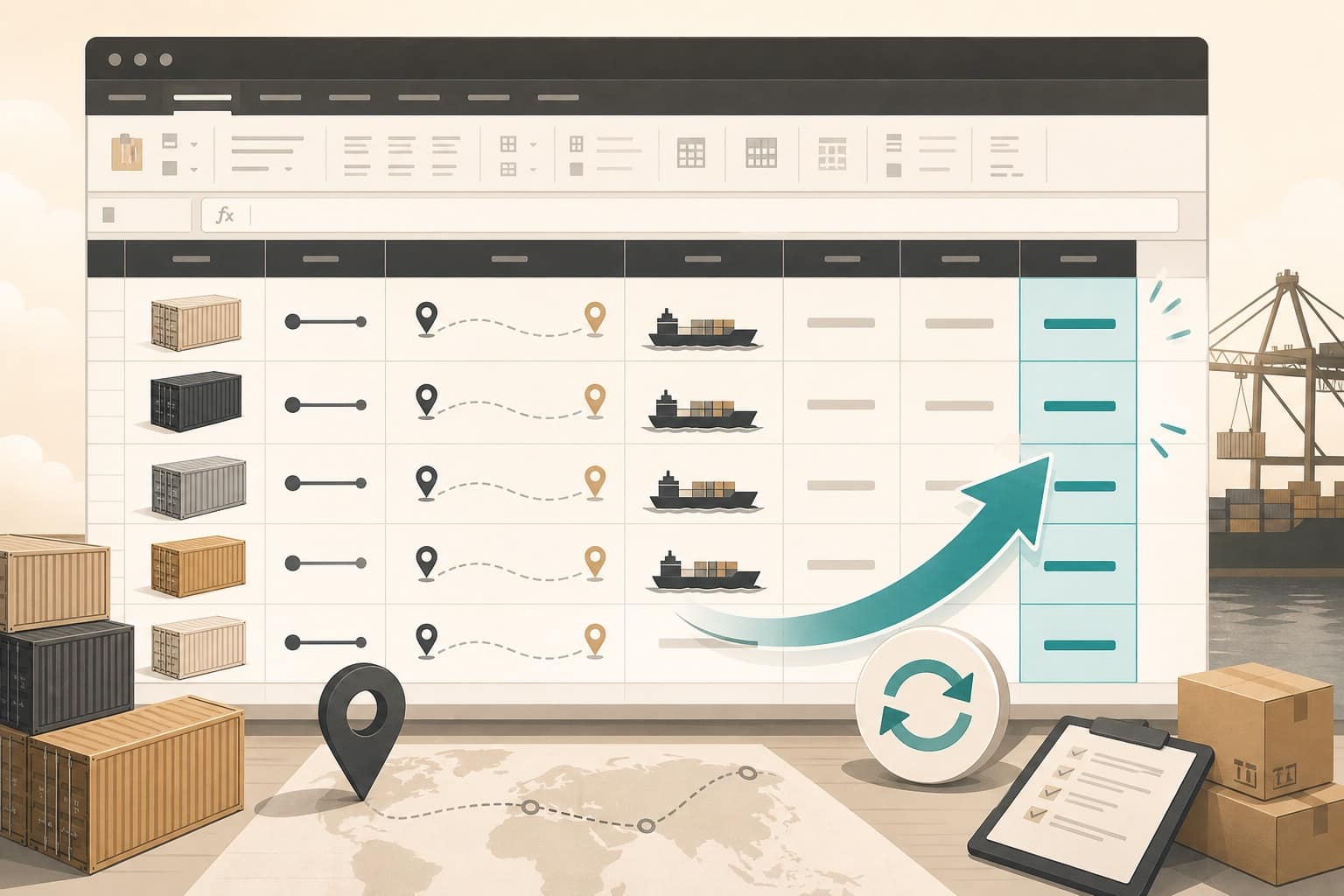
If you manage ocean freight, your day often starts in Excel: Bill of Lading numbers, carrier names, and ETA columns that were accurate yesterday and wrong this morning.
Opening Maersk, MSC, and CMA CGM sites one by one works for five shipments. It fails for fifty.
What Bill of Lading tracking should look like
A practical BL tracking workflow needs three things:
- Any spreadsheet format — including messy multi-section workbooks
- Reliable carrier lookups — not screenshots or guesswork
- A downloadable result — updated Excel plus a shareable PDF
That is what Melsun Shipment Tracking is built for.
How to refresh ETAs from Excel
- Sign in at melsun.ai — new accounts get five free runs.
- Upload your Excel, CSV, or PDF tracking sheet.
- Confirm AI column mapping for BL number, shipping line, and optional ETA fields.
- Run tracking — each row is routed to the matching carrier lookup.
- Download the refreshed spreadsheet and PDF summary.
Who this helps
- Importers monitoring inbound containers
- Trading companies refreshing supplier ETAs
- Ops teams that still coordinate in shared Excel files
- Finance or logistics staff preparing arrival reports
Related tools on Melsun
Full workflow overview lives on the importers use-case page and pricing.
Start free
Open Shipment Tracking, upload one live sheet, and see how long a full ETA refresh takes compared with manual carrier checks.